Search Console Clicks vs. GA4 Sessions: Why the Numbers Differ
Understand why Search Console clicks and GA4 organic sessions differ, then reconcile dates, landing pages and tracking gaps before explaining the numbers.

Search Console reports more clicks than GA4 reports organic sessions. Then the client asks which number is actually right, and a routine reporting meeting turns into an impromptu tracking investigation.
Both numbers can be right at the same time because they record different events in different systems. A gap on its own does not prove that visitors vanished or your tags failed.
The real question is whether that difference comes from how you built the comparison, expected measurement behaviour, or a reproducible tracking fault. Work through those three possibilities in order.
What clicks and sessions actually count
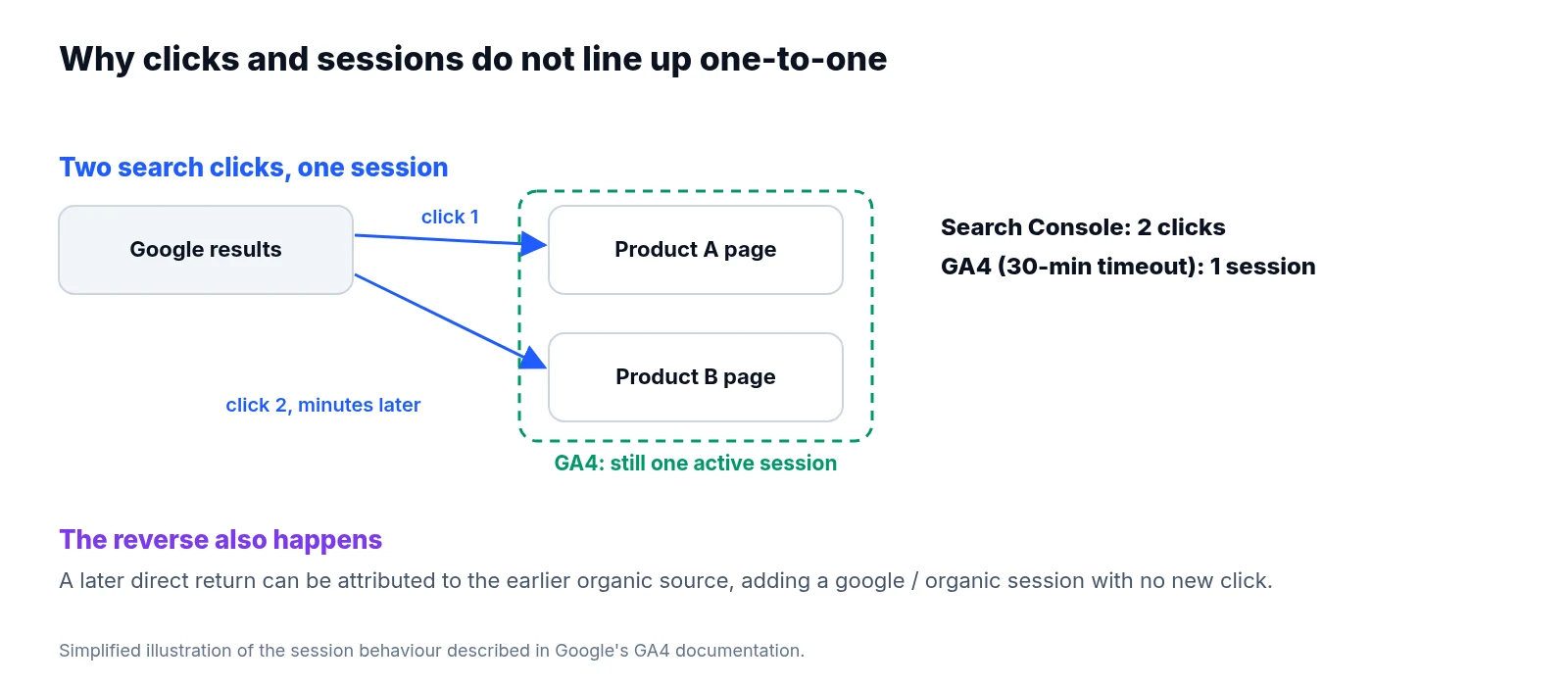
Search Console logs clicks straight from Google Search results. GA4 only measures activity on your website and groups those interactions into sessions. Under Google's session definitions, a session begins when someone views a page while no session is currently active, and it times out after 30 minutes of inactivity by default.
Picture how people browse. A shopper finds a product on Google, clicks through to your site, backs out to the search results, and clicks a different product on your site a few minutes later while that first session is still active. Search Console logs two clicks, yet those clicks need not create separate GA4 sessions.
The mismatch runs in the other direction too. GA4's session attribution can credit a later direct return to an earlier organic source without a fresh search click, which means clicks and attributed sessions have no fixed one-to-one relationship.
Skip arbitrary rules of thumb about an acceptable discrepancy percentage. Establish a baseline for the same property and reporting setup, then investigate when that historical relationship shifts.
Scope alignment across both tools
Write down the exact scope of your comparison before exporting anything. For Search Console, record the property, search type, page filters, country, and device. For GA4, note the property, web stream, included hostnames, session filters, and metric. Across both tools, log the date range and extraction date.
In GA4, pull Sessions with Session source / medium set to google / organic. Using the whole Organic Search channel can include other search engines, while First user source describes how someone was originally acquired and answers a different question. Google's guide to using both tools specifically recommends filtering session source to Google and session medium to organic.
Check your property boundaries while you are there. A Search Console Domain property can cover subdomains and protocols that your GA4 implementation does not measure, whereas a URL-prefix property may cover only part of the website.
Start with Search Console's Web search type and keep Image, Video, News, and Discover separate, documenting that GA4 offers no equivalent search-type breakdown. Match country and device filters where used, while treating those classifications as comparable rather than identical.
Time zones and reporting windows
Always use a completed reporting period. Check freshness in both tools so you do not compare today's partial GA4 data with preliminary Search Console numbers, and save the extraction date so another analyst can repeat the comparison after processing settles.
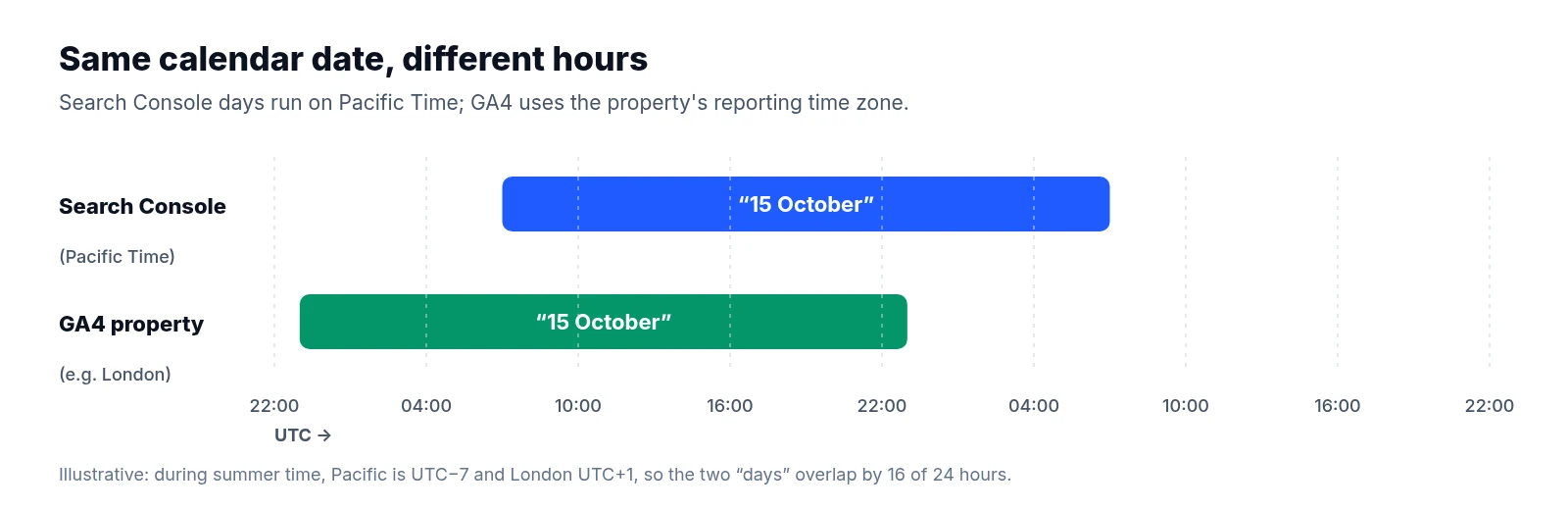
Time zones drive most daily friction. Search Console's standard daily reporting runs on Pacific Time, whereas GA4 uses the property's reporting time zone. Selecting identical calendar dates in both interfaces does not necessarily select identical hours; Google's discrepancy guidance explains these time-zone and processing differences.
Record both time zones, including daylight-saving changes. When precise alignment matters, use GA4 timestamp-level export data to construct a comparison on Pacific Time boundaries and document how sessions are assigned to dates.
For routine reporting, compare completed weeks or months and disclose the remaining boundary difference. Longer periods reduce the influence of midnight boundaries without eliminating it. Never change a production property's time zone just to make a chart match.
Canonical URLs vs. actual landing pages
Use GA4's landing-page reporting rather than all page views. Because the landing page identifies the first page view in a session, later pages visited during that same session do not count as additional entrances, a scope explained in Google's landing-page report documentation.
Even then, URLs rarely match one-for-one. Search Console generally assigns performance to Google's selected canonical URL, while GA4 records the URL actually loaded in the browser. One Search Console page can therefore correspond to several GA4 URL variants; see Google's URL attribution explanation.
To bridge the two reports, build a mapping table with the Search Console URL, GA4 hostname and landing path, redirect destination, and comparison URL. Remove tracking parameters only when they do not change the content, and preserve meaningful parameters, language paths, and distinct hostnames. Do not automatically lowercase paths or remove trailing slashes without checking how the site behaves.
Keep unmapped URLs visible. A PDF can receive search clicks without creating a tagged website session, and a redirect can move the visitor to a different landing URL. Neither is automatically a tagging failure.
Calculating and segmenting the comparison gap
Once scope, dates, and URLs are documented, export the daily totals and landing-page rows.
Calculate the signed difference as GA4 sessions minus Search Console clicks. If you also report a percentage, state that Search Console clicks is the denominator and leave it undefined when clicks are zero. Label this figure a comparison gap rather than lost traffic.
Compare the current relationship against previous equivalent periods, then break it down by landing-page template or site section, device category, country, and the dates around releases, redirects, and consent-banner changes.
A sudden divergence confined to one template is a reason to inspect that template, while a stable difference across completed periods gives you a baseline to document. Neither pattern proves its cause without further checks. Stick to totals from equivalent report views: do not rebuild Search Console's headline total by summing visible query rows, because anonymised queries and row limits can make that sum incomplete.
Controlled tests for real tracking gaps
Choose affected pages alongside an unaffected comparison page. Test actual search arrivals where practical, inspecting the redirect path, tag execution, and outgoing measurement requests.
Confirm that the intended GA4 measurement ID receives the initial page view with the expected page location and referrer. Use Tag Assistant, browser network tools, and DebugView together, since a tag appearing in the page source does not prove that a request was sent.
Repeat tests across relevant devices and consent states. Look for missing template tags, incorrect triggers, script errors, restrictive content security policies, and tags delayed until after visitors leave, and check whether redirects or custom referrer settings alter acquisition information.
Consent needs its own diagnosis. Properly configured consent choices reduce observable traffic. GA4 may include behavioural modelling when the property is eligible and the report supports it, though modelling does not guarantee agreement with clicks; check the report's data-quality indicator and Google's consent modelling documentation. A consent refusal behaving as designed is an expected measurement limitation, whereas a tag staying blocked after valid consent is granted points to a possible implementation fault.
Also inspect active data filters. If GA4 is unexpectedly higher, investigate session fragmentation across domains or inconsistent identifiers. Duplicate page views can inflate views without necessarily creating extra sessions.
Logging evidence instead of assumptions
Use one row per finding in a discrepancy log, tracking the affected period, pages, classification, evidence, owner, and next review date. These illustrative entries show how to separate evidence from assumptions:
| Finding | Classification | Evidence to retain | Next action |
|---|---|---|---|
| Daily boundaries differ | Expected reporting difference | Both configured time zones | Align exports or disclose |
| PDF clicks have no website sessions | Expected coverage difference | Clicked URLs and response types | Report separately |
| Tag absent on one template | Confirmed tagging failure | Reproducible missing request | Assign fix and retest |
| Consent accepted, tag still blocked | Suspected tagging failure | Consent state and trigger trace | Reproduce and diagnose |
| Mobile gap widened after release | Unresolved | Segmented trend and release date | Test affected pages |
Do not classify every unexplained session gap as consent loss. Keep unresolved findings open until you have evidence, and avoid assigning exact click counts to a cause that aggregate reports cannot quantify. After a fix, repeat the browser test and review a completed post-fix period—successful collection today does not recover events that were never collected.
Explaining the numbers without overclaiming
Agencies need language that states what is known. Suggested wording for an expected difference:
Search Console measures search clicks; GA4 measures attributed website sessions. We aligned the scope, dates and landing pages. The remaining difference is consistent with the documented measurement limits.
For a confirmed fault:
We reproduced a missing analytics request on the affected template. Search Console continued recording clicks, while GA4 missed activity. We corrected the trigger and verified collection. The historical shortfall cannot be quantified exactly from these totals.
Add the affected period, supporting evidence, and next review date, and mark open items as “under investigation” where the cause remains uncertain.
Near reporting time, LiveSolN's Analytics Monitoring & Reporting can help keep GA4 trends and release annotations together. Keep the reconciliation log alongside that reporting so the explanation remains traceable, built on aligned definitions, documented limits, tested faults, and a clear account of what the numbers support.
Written by
LiveSolN Team
SEOs and analysts with more than a decade in the industry, writing about the monitoring and reporting problems we built LiveSolN to solve.
