GA4 Revenue Not Matching Store Orders? A Reconciliation Guide
Investigate GA4 revenue discrepancies against store orders, spot missing or duplicate purchases, and document refunds and reporting scope for stakeholders.

Your store backend reports one revenue total for the month. GA4 reports another. Before you open Tag Manager and start editing triggers, stop and check whether those two numbers are even supposed to match.
An order database and an analytics property do fundamentally different jobs. Your store records commercial activity: orders placed, payments captured, items fulfilled, and refunds issued. GA4 only reports the events it actually receives, filtered through its own metric definitions and property settings. Because of that, gaps between the two systems can come from missing purchases, repeated events, refunds, currency conversion, or simply comparing two different definitions of revenue.
The useful question is how much of that difference you can explain, prove with data, and fix. Start with individual orders, then build a clear bridge between the summary totals.
What are you actually comparing?
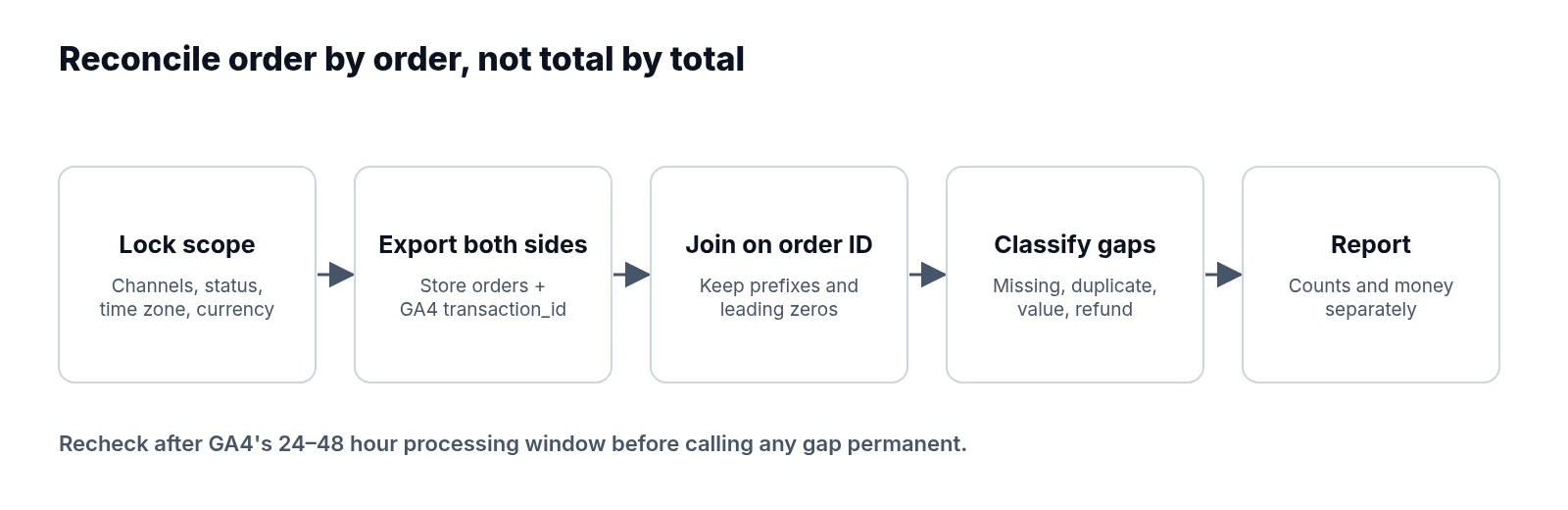
Write a short reconciliation brief before exporting anything. Most apparent tracking bugs turn out to be scope mismatches because two people pulled numbers using different rules. Lock down which storefronts, sales channels, GA4 property, and web streams belong in the audit, and specify which order status qualifies: placed, paid, or fulfilled. Note the exact dates, time zone, and currency, state whether discounts, tax, shipping, and refunds are included, and name the exact GA4 metric and report supplying your comparison.
Time zones and order channels cause immediate drift if left unchecked. An order placed just before midnight and paid a few minutes afterward can land on different dates in each system, so convert store timestamps to the GA4 property's reporting time zone and investigate orders sitting near the date boundary. Keep point-of-sale, marketplace, telephone, test, and unpaid orders separate unless your measurement explicitly covers them.
Pick your GA4 metric deliberately. In Google's metric reference, each revenue field has a distinct definition: gross purchase revenue excludes refund deductions, whereas purchase revenue deducts refunds. Total revenue covers a broader scope that includes advertising and subscription revenue, while item revenue measures individual item amounts rather than the whole transaction.
Always audit a completed period and record when you extracted the data. GA4 processing can take 24–48 hours, meaning yesterday's total may still change. Recheck after that window closes before classifying a gap as permanent, following Google's data freshness guidance.
Matching orders one by one
Once the scope is locked, pull order-level records from the store: order IDs, relevant timestamps, status, currency, discounted merchandise amounts, tax, shipping, and refunds, preserving purchase dates and refund dates in separate columns. From GA4, obtain transaction IDs and revenue using a compatible Exploration or Data API report. If an existing BigQuery export covers the period, query it to inspect purchase events and their parameters. Record the extraction method, since processed reports and raw event exports are different evidence sources.
Build your reconciliation sheet with one summary row per store order, keeping the underlying event rows available for deeper investigation. Compare order counts and money separately. Equal revenue totals can still hide missing orders that happen to be offset by duplicates.
Join the store's order ID to GA4's transaction_id, taking care to preserve prefixes and leading zeros that spreadsheets often strip out. If an integration changes identifiers in transit, document that mapping rather than guessing matches from dollar amounts, and keep unmatched GA4 transactions alongside unmatched store orders. Useful investigation columns include expected value, observed value, event count, currency, discrepancy category, evidence, owner, and status. Keep customer names and email addresses out of the reconciliation extract entirely.
How offsetting errors hide inside a small gap
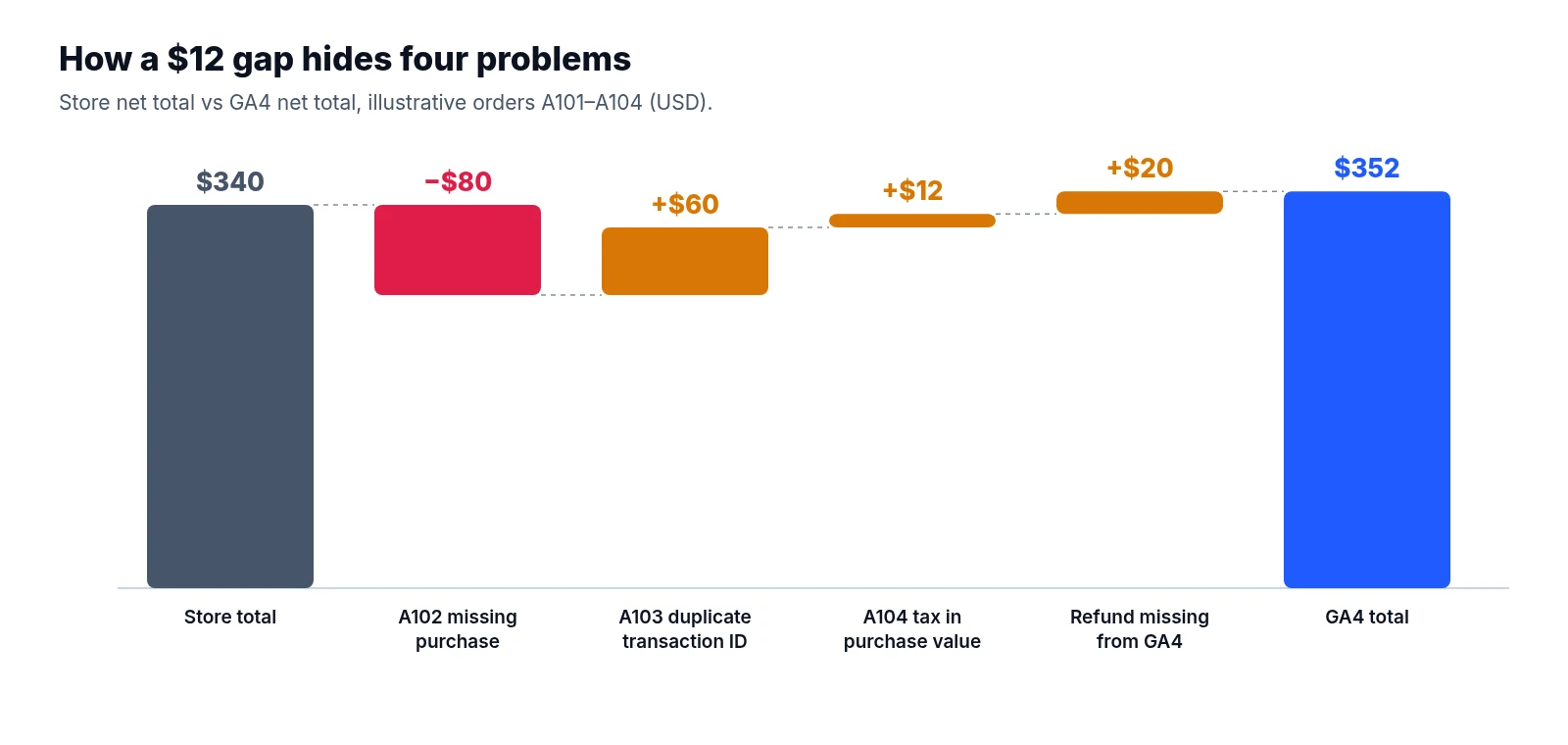
This illustrative example shows why top-line comparisons fail. All amounts are USD, dates and scope already match, and purchase values represent discounted merchandise excluding tax and shipping. The GA4 column represents processed amounts, with refunds shown on a separate line.
| Entry | Store amount | GA4 amount | GA4 minus store | Finding |
|---|---|---|---|---|
| Order A101 | 100 | 100 | 0 | Matched |
| Order A102 | 80 | 0 | -80 | Missing purchase |
| Order A103 | 60 | 120 | +60 | One order reported under two transaction IDs |
| Order A104 | 120 | 132 | +12 | Tax incorrectly included in purchase value |
| Refund against A101 | -20 | 0 | +20 | Refund absent from GA4 |
| Net total | 340 | 352 | +12 | Several differences partially cancel |
The headline gap between USD 340 and USD 352 is only USD 12.
Underneath that small net difference sit four distinct problems: a missing USD 80 purchase, an extra USD 60 purchase, a USD 12 value error, and a missing USD 20 refund. Fixing only the headline difference—or ignoring it because the totals look close—leaves the underlying measurement unreliable.
Chasing missing purchases through checkout
For each unmatched store order, follow the path from confirmed payment to the outgoing analytics request. Start by checking whether the customer ever reached the confirmation page. A purchase tag that depends entirely on that receipt page will miss customers who close a payment window early or never return from an external payment provider.
When the page did load, inspect the data layer, tag trigger, consent state, destination measurement ID, and network request. A tag appearing as fired in preview mode does not establish that the correct payload reached the intended property. Use a controlled test order to inspect purchase, transaction_id, numeric value, currency, and items, testing mobile checkout, express payment, and external payment flows individually. Watch DebugView to inspect the test events as they arrive, then confirm processed reporting after the normal delay.
If missing orders cluster right after a release or around one payment method, investigate that path first. Record unexplained absences as unknown until evidence supports a cause.
Duplicate events vs. duplicate orders
A page reload, payment callback retry, or overlapping integrations can send the same purchase more than once. Check whether platform plugins, tag manager containers, and server integrations are all reporting purchases at the same time.
For web streams, GA4 uses transaction IDs to deduplicate purchases from the same user. Every order needs a stable, unique ID, and retries must reuse it. Reusing one ID across separate orders can instead suppress valid purchases, while empty transaction IDs can cause severe undercounting. Google's transaction ID guidance explains these behaviours in detail.
Do not assume two outgoing requests produced twice the reported revenue. Compare network requests, raw events where available, and processed amounts. In the illustrative table above, the duplicate survives because one order was sent under two different identifiers. Fix the sending logic and identifier mapping, verify reloads and retries, and keep historical discrepancies documented separately from the deployment date.
Where the math breaks: values, discounts, and currencies
When an order's ID matches in both systems but the dollar amount differs, check your payload calculation against the purchase event reference. For a web purchase, Google's event specification defines value as the sum of item price multiplied by quantity, excluding tax and shipping, which must be sent separately. When applying item discounts, send the discounted unit price and make sure you do not subtract the same discount again when calculating the event total.
Inspect formatting details as well: decimal separators, numeric types, quantities, and whether an integration sends minor units such as cents as whole currency units.
If you process multiple currencies, validate the ISO currency code on every purchase carrying a value and compare transaction amounts in their original currencies before combining them. GA4 converts local currencies into the property's reporting currency using the previous day's exchange rate. Store settlement rates and payment fees can therefore produce differences even when the original purchase value matches. Document the conversion basis and rounding separately, following Google's currency reference.
Refunds, consent, and behavioral modeling
A store refund does not automatically create a GA4 refund. Confirm that your integration sends a refund event with the original transaction ID and the appropriate refunded value and currency, and include item IDs and quantities when item-level refund reporting matters, following Google's ecommerce guidance. Check partial refunds and repeated refund deliveries. You also need to distinguish refunds processed during the reporting period from refunds against orders originally purchased during it; those are different views, so label which one the report uses.
Consent choices, browser restrictions, and blocked requests can leave genuine purchases unobserved. Test both granted and denied consent paths against your intended configuration, but avoid assigning every missing purchase to consent without evidence.
Eligible GA4 reports can include modelled behaviour, whereas BigQuery exports do not include that behavioural modelling. Because modelled totals cannot provide a recoverable transaction ID for every estimated purchase, document this limitation when comparing report totals with observed orders, using Google's behavioural modelling guidance.
Reporting the gap honestly to stakeholders
Give stakeholders the store total, the comparable GA4 total, the absolute gap, and the percentage gap against the store baseline. Show confirmed scope adjustments, confirmed tracking errors, and the remaining unexplained amount on separate lines. For each open issue, state the affected dates, evidence, owner, next action, and review date, and mark recent periods provisional while processing completes.
Do not silently increase GA4 revenue to match the store or distribute unknown amounts across marketing channels. Keep the store as the operational order reference and explain limitations on analytics attribution, using the structure in our client-ready analytics reporting guide.
LiveSolN's Analytics Monitoring & Reporting can help track revenue changes and annotate fixes as they go live. Keep the reconciliation alongside the recurring report so stakeholders can see both the reported result and the evidence behind it.
Written by
LiveSolN Team
SEOs and analysts with more than a decade in the industry, writing about the monitoring and reporting problems we built LiveSolN to solve.

