JavaScript SEO Debugging: Compare Raw HTML and Rendered Crawls
Diagnose JavaScript SEO problems by comparing raw HTML with rendered pages, tracing missing content and links, and verifying fixes across page templates.

Open a product page in your browser and everything looks complete. The product description sits right where it belongs, the technical specifications table is populated, and related products appear beneath the gallery images. Then your site crawler finishes its run and reports something very different: a single heading and a loading message.
Both observations can be right at the same time. Your browser and your crawler are simply inspecting different stages of the page's lifecycle.
When content vanishes between what the server sends and what a shopper sees, the practical question is where the handoff breaks. Content can go missing before scripts ever run, fail midway through client-side rendering, or sit trapped behind a user interaction that a bot never triggers. Comparing raw server HTML against rendered output gives you a repeatable way to isolate the failure instead of guessing.
Anchoring the test on one product template
Take an illustrative product page at /products/trail-pack. When the server responds to the initial request, the HTML payload contains the site navigation and an empty product container. Client-side JavaScript then fetches the product data, inserts the description copy, and builds the links to related products.
A raw HTML crawl will miss every one of those additions. A rendered crawl can find them, provided its headless browser is able to load the script bundles, retrieve the data from the backend, and finish updating the page.
Seeing that difference in your own tools does not automatically prove an indexing failure in search. Google processes JavaScript through its rendering pipeline, yet a clean render inside a third-party crawler never establishes what Google actually indexed. Google's JavaScript SEO guidance explains how crawling, rendering, and indexing operate as separate steps.
Before running a large crawl, pick one affected URL and one working URL that share the same template. Write down the exact description phrase and the specific link destinations you expect to see on the page. Having concrete targets on paper makes the comparison far faster once you start looking at markup.
Capturing the server response and the rendered DOM
To establish a clean raw baseline, open your browser's developer tools in a blank tab before loading the product URL directly. In the Network panel, click the main document request at the top of the waterfall and save both its response body and its HTTP headers.
It is easy to mix up the Network panel and the Elements panel when debugging quickly. The response body in the Network tab is the exact HTML delivered by the server. The Elements panel shows the live document structure, or DOM, after the browser has parsed the initial markup and executed JavaScript changes. Searching the Elements panel tells you what exists on the page after scripts run, but it cannot tell you what arrived in the initial server response.
With the manual baseline saved, run two crawls against the same explicit list of URLs. Configure the first as a raw HTML crawl with JavaScript execution disabled, and run the second as a rendered crawl using a browser engine with its rendering settings recorded. Keep the device profile, user agent, cookies, geographic location, crawl scope, and extraction rules consistent across both runs wherever your software allows, and note any differences you cannot avoid.
Always start your manual browser checks with fresh storage and no active login. Test a direct page load in the address bar separately from internal clicking through the application. In many single-page applications, a client-side route works fine when you click into it from a category page because state is already in memory, yet fails when a crawler requests that same URL directly. Save the rendered DOM, a page screenshot, console errors, and failed network requests from each test. While a screenshot shows visual appearance, only the rendered DOM provides searchable evidence of text content and links.
Auditing content, links, and indexing directives
Skip the temptation to run a full line-by-line diff between the raw HTML and the rendered DOM. Framework identifiers, dynamic timestamps, and generated CSS classes will bury the changes that actually matter. Extract a small, focused set of fields instead.
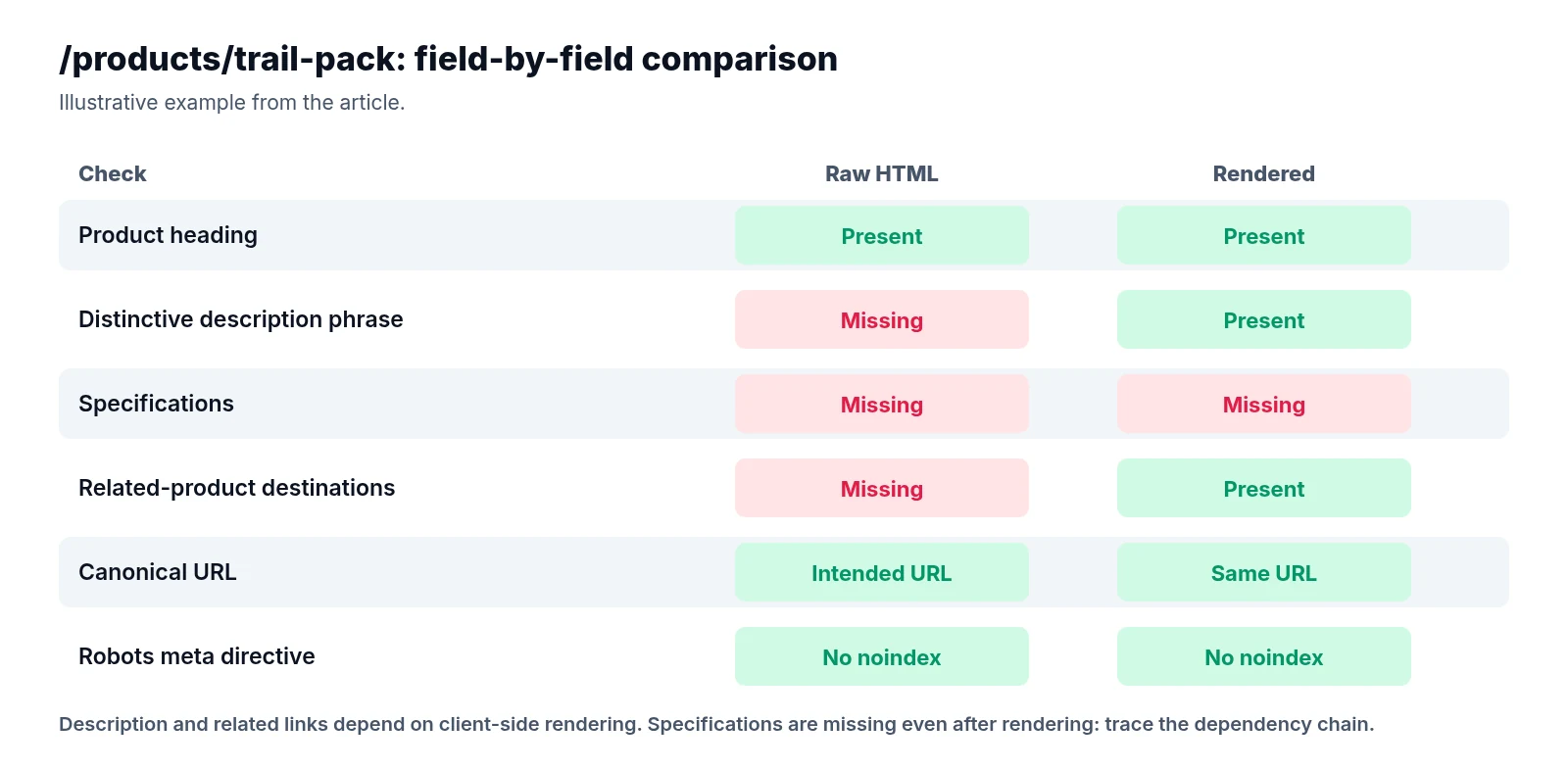
For our /products/trail-pack example, a side-by-side comparison looks like this:
| Check | Raw HTML | Rendered output |
|---|---|---|
| Product heading | Present | Present |
| Distinctive description phrase | Missing | Present |
| Specifications | Missing | Missing |
| Related-product destinations | Missing | Present |
| Canonical URL | Intended product URL | Same URL |
| Robots meta directive | No noindex | No noindex |
This narrow table immediately separates two problems. The product description and related links depend entirely on client-side rendering, while the specifications section needs deeper investigation because even a full browser render did not recover it.
When you check for copy in the rendered output, search for visible page text inside DOM nodes rather than accepting a string match inside an inline script tag containing JSON product data. Data sitting inside an application state object is not the same thing as content inserted into the document for a user or crawler to read.
Apply that same skepticism to internal links by comparing link destinations rather than raw link counts. Ten footer links do not compensate for ten missing product links. Verify that your navigation and product modules use standard anchor elements with resolvable href values. Script-driven product cards that rely on click listeners without real anchor attributes are unreliable for crawler discovery, as Google's crawlable link guidance explains.
Check the page title, canonical URL, and robots meta tags both before and after rendering. Record the HTTP status code and any X-Robots-Tag header separately, because client-side DOM mutations never rewrite the original HTTP response headers. Watch out in particular for templates where the initial HTML contains a noindex directive that JavaScript later removes once data arrives. Google may stop and skip rendering altogether after seeing that initial noindex. Serve the intended indexing directive from the server on the first response, and make sure client scripts do not introduce conflicting canonical URLs.
Tracing the dependency chain to the first failure
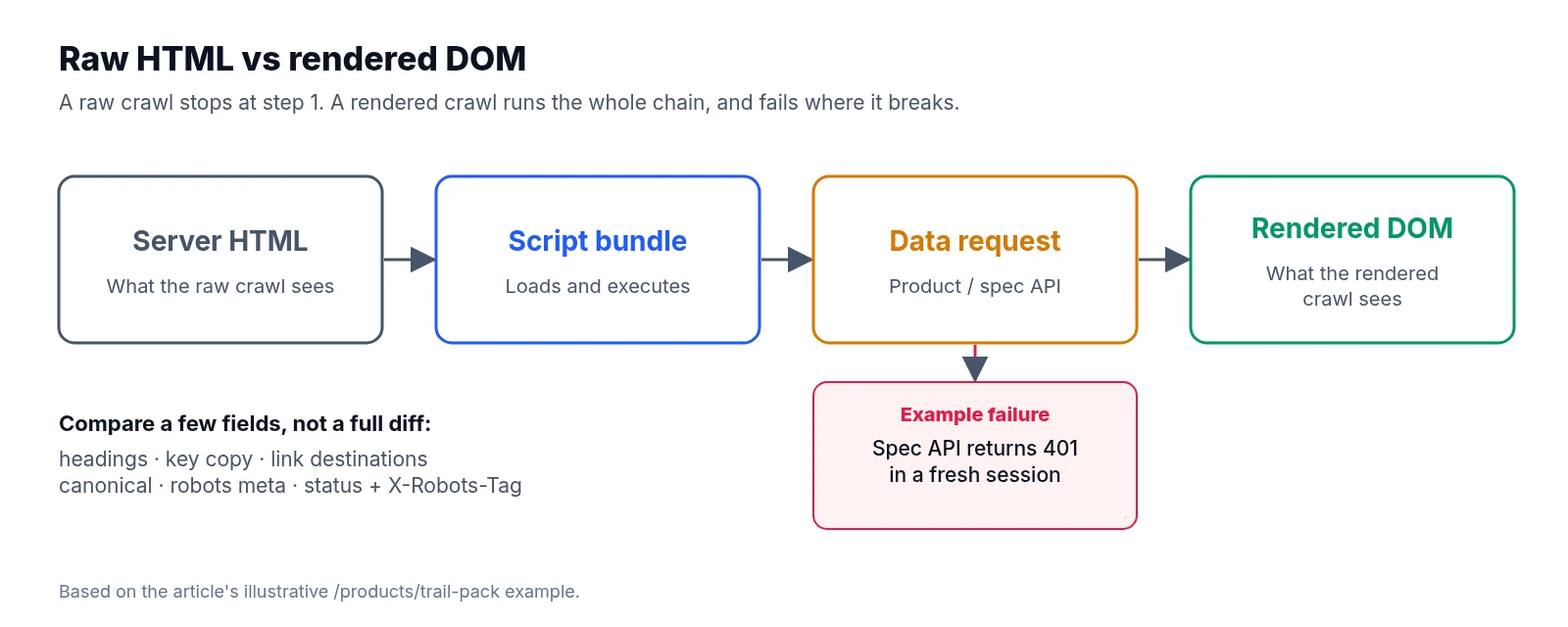
When content stays missing even in a rendered crawl, follow the technical chain required to build it: the HTML document loads a script bundle, the script fires a data request, and the component renders the result into the DOM.
Reload the page with the Network and Console panels open together to see where that chain breaks. Check whether script requests return HTTP errors, unexpected redirects, or an HTML error page in place of JavaScript code. Look for product API requests that fail, time out, or demand an existing user session, as well as browser security restrictions like CORS rules blocking resources or responses. Check the console for JavaScript exceptions halting the component or hydration errors where client code fails to attach cleanly to server-rendered markup.
Always chase the first failure connected to your missing content. A broken third-party analytics script in the console is usually harmless noise, whereas a failed product-data request is directly responsible for an empty template.
Suppose that on /products/trail-pack, the specifications API endpoint returns a 401 status code in a fresh browser session but succeeds with a 200 after you browse another page on the site first. That behavior points straight to a session dependency—such as an endpoint expecting a cookie initialized elsewhere. Confirm it by repeating both paths in clean windows and comparing the request headers. While you are testing resource access, check your robots.txt rules too. An API route or script bundle that loads without issue in your local browser may still be blocked when a search crawler tries to render the page.
Separating timing delays from required interactions
Once broken requests are ruled out, find out whether the missing content is slow to load or waiting on a user action. Repeat your rendered crawl with a longer, documented wait time as a diagnostic experiment. If the description appears only after extending the wait, investigate slow backend requests, delayed script execution, and how your crawler decides a render is complete. Keep in mind that there is no universal wait setting in an audit tool that reproduces Google's renderer; increasing a crawler timeout proves you have a timing dependency, not that search engines will wait long enough to index the content.
Next, test page interactions one at a time in a fresh browser window. Check whether the specifications network request starts only after clicking a tab, whether related products load only after scrolling down the page, or whether accepting a cookie consent banner is required to reveal the product description.
Be careful to distinguish content that is already present in the DOM (and simply hidden visually inside a collapsed accordion) from content fetched over the network only after a click. Those two patterns require very different code fixes. Google Search does not interact with pages by clicking tabs or scrolling through viewports, so essential page content must load into the DOM without those actions, a constraint covered in Google's lazy-loading guidance.
Keeping a structured debugging worksheet
Informal notes get lost quickly when multiple templates are involved. Create one debugging worksheet per template and attach evidence for individual URLs before deciding on a root cause.
| Field | What to record |
|---|---|
| URL and template | Exact address, template name, deployment version |
| Test conditions | Timestamp, device, user agent, cookies, cache state |
| Crawl settings | HTML or rendered mode, engine version, wait rule |
| Response | Status, redirect destination, relevant headers |
| Expected content | Distinctive phrase, heading, specifications |
| Expected links | Exact destinations and anchor text |
| Directives | Raw and rendered canonical and robots values |
| Failure evidence | Request URL, status, console error, interaction needed |
| Verification | Fix, owner, retest date, result, evidence location |
Write the reproduction steps clearly enough that an engineer can replicate the bug in one try: open a fresh session, request the URL directly, apply the recorded wait rule, and check the expected fields in the DOM without clicking or scrolling. When handing the issue off to developers, attach both HTML captures alongside the failing network request or console error, and strip any credentials or session tokens from shared network exports.
Shipping the fix and verifying across templates
Match your engineering fix to the evidence gathered during debugging. That might mean repairing a broken data request or script error, removing an unnecessary session requirement from a public API endpoint, or loading essential product details without waiting for a click. Where your stack makes it practical, server-render or pre-render the core product description and navigation links so their availability in the document depends on fewer browser operations.
Test client-side enhancements carefully after moving markup to the server. Server-delivered content can still disappear in the browser if client hydration code mounts with an empty state and overwrites the initial HTML.
Once the fix ships, rerun your original URL list using the exact same crawler settings. Expand your test list to cover product variants, unavailable items, long descriptions, and other template branches, checking both cold direct requests and in-app navigation. Sample category pages and editorial templates that share the modified components to make sure nothing broke upstream.
Use Search Console's URL Inspection live test to examine Google's current rendered HTML and verify that no resource errors remain, following the steps in Google's JavaScript troubleshooting documentation. A passing live test confirms that Google can render the template now, though it does not guarantee indexing; check the indexed result after Google recrawls the site.
For ongoing monitoring, LiveSolN's Site Crawler can track both raw and rendered fields across your affected templates over time. Add the verified extraction checks to your regular technical SEO audit checklist and keep the completed worksheet attached to the release record so you can test the next deployment against the exact same baseline.
Written by
LiveSolN Team
SEOs and analysts with more than a decade in the industry, writing about the monitoring and reporting problems we built LiveSolN to solve.

